


Feedback

Last date modified: 2026-Nov-16
Relativity aiR-to-Relativity aiR transfers help move large volumes of workspaces between Relativity aiR environments faster and with less manual work, saving time and reducing errors.
aiR-to-aiR transfers are possible only between instances of the same environment type, such as an ESUS instance to a CTUS instance from prod-com. Transfers between prod-com and prod-gov are not possible.
Ensure you have admin level of staging permissions, see Permissions.
The following describes the workflow to automated Relativity aiR-to-Relativity aiR transfer between instances. Receiver refers to the destination instance that will receive the data transfer. Sender refers to the source instance that holds the data to be transferred.
The following section describes how to generate an authorization token separately for the source instance and the destination instance. All endpoints are protected and require an authorization token in the form of a JWT.

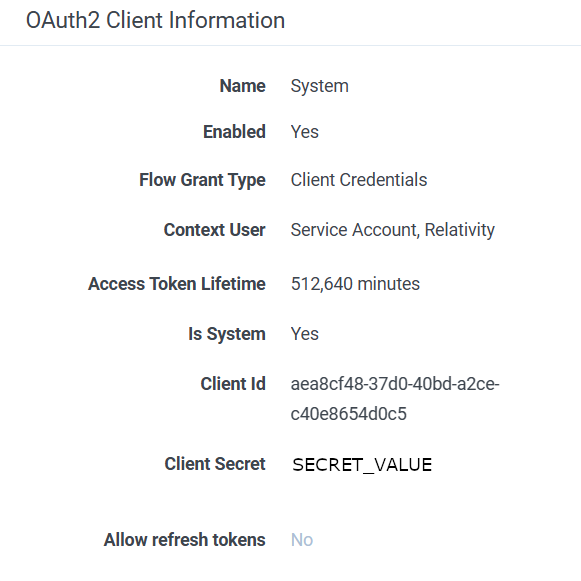
The Client Secret may rotate from time to time, which can cause a “400 Bad request - "error": "invalid_client"” error code. Requiring you to enter the new Client Secret in Postman.
curl --location 'YOUR_R1_BASE_ADRESS/Relativity/identity/connect/token' \
--header 'Content-Type: application/x-www-form-urlencoded' \
--data-urlencode 'grant_type=client_credentials' \ --data-urlencode 'client_id=YOUR_CLIENT_ID' \ --data-urlencode 'client_secret=YOUR_CLIENT_SECRET' \
--data-urlencode 'scope=SystemUserInfo'| Placeholder | Description |
|---|---|
YOUR_R1_BASE_ADDRESS
|
The address of Relativity aiR, for example https://esus019064-t044.r1.kcura.com/ |
YOUR_CLIENT_ID
|
The Client Id from the OAuth2 System Client |
YOUR_CLIENT_SECRET
|
The Client Secret from the OAuth2 System Client |
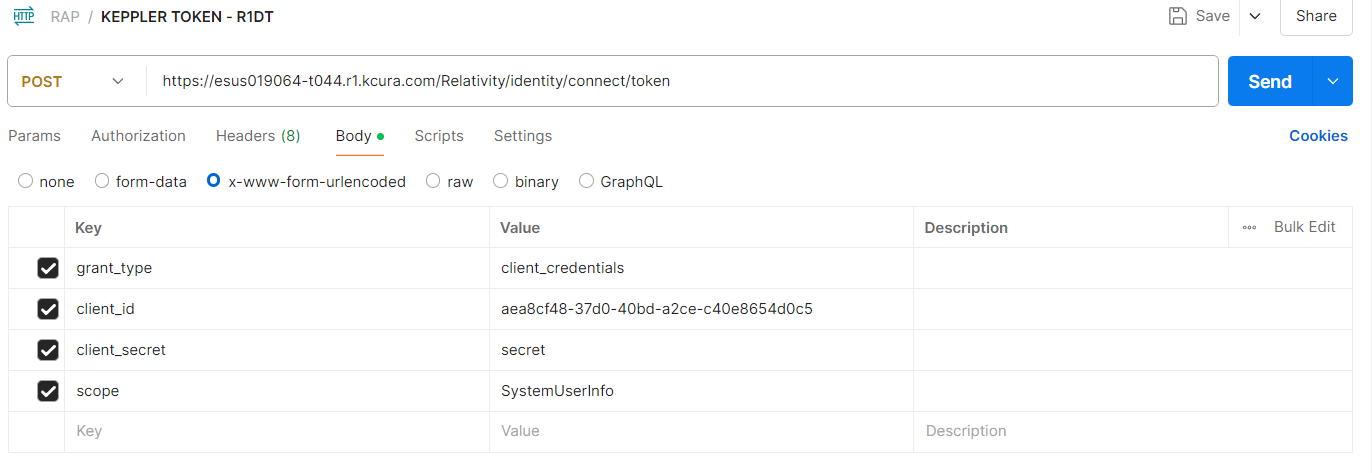
Ensure the body of the request is entered correctly. Invalid entries can cause a “400 Bad request - "error": "invalid_client"” error code.
{
  "access_token": "<access token - copy this value, it is used later>",
  "expires_in": 30758400,
  "token_type": "Bearer",
  "scope": "SystemUserInfo"
}
Copy the value of access_token from the response.
The following section describes calling the Relativity aiR API endpoints:
| Requirement | Details |
|---|---|
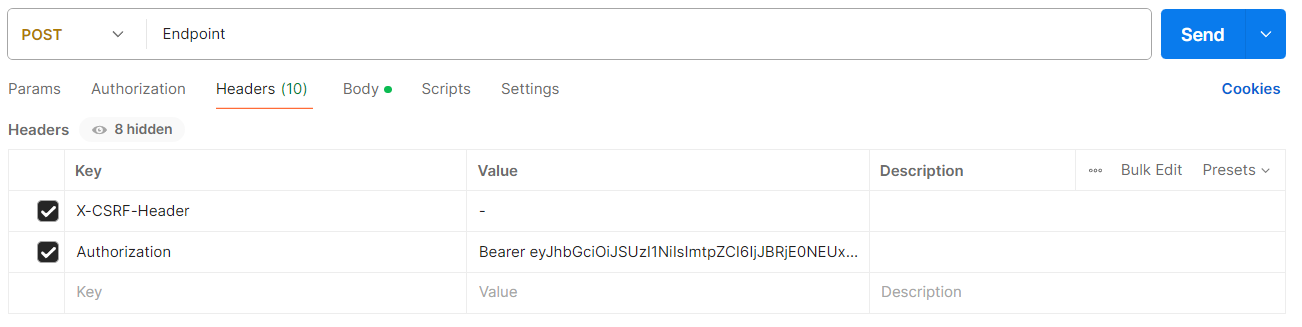
| Authorization header | All endpoints are protected. Add the authorization token to the header. Token scheme is Bearer: Authorization: Bearer YOUR_TOKEN |
| X-CSRF-Header | All endpoints require the X-CSRF-Header header with any value. |
| HTTP methods | POST creates jobs. GET retrieves job details. |
Example headers for creating a job:
The following section describes how to use POST to create a reference token. Send a POST request with a URL in the following format:
https://{destination_instance_url}/transfer-service/api/v2/transfer/reference-token| Body field | Description |
|---|---|
DestinationPath
|
Relativity fileshare path to directory, where data should be placed. |
{
  "DestinationPath": "\\\\files.t081.esus019064.r1.kcura.com\\T081\\StructuredData\\DestDir"
}{
"referenceToken": "eyJhbGciOiJub25lIiwidHlwIjoiSldUIn0.eyJ0ZW5hbnRJZCI6IlQwODEiLCJwb2RJZCI6ImVzdXMwMTkwNjQiLCJqdGkiOiI1M2FjNzE5Ny0xOGQyLTRlNGYtYTYwNy1iZGQzZGY3ZDEyM2IiLCJuYmYiOjE3ODAwNTgzMDQsImV4cCI6MTc4MDY1OTUwNH0."
}Reference tokens can be validated by either party, but revoked only by the Receiver.
The following section describes how to use POST to create validate a reference token. Send a POST request with a URL in the following format:
https://{source_instance_url}/transfer-service/api/v2/transfer/reference-token/validate| Field | Description |
|---|---|
ReferenceToken
|
Token representing destination directory, returned during reference token creation |
{
  "referenceToken": "eyJhbGciOiJub25lIiwidHlwIjoiSldUIn0.eyJ0ZW5hbnRJZCI6IlQwODEiLCJwb2RJZCI6ImVzdXMwMTkwNjQiLCJqdGkiOiI1M2FjNzE5Ny0xOGQyLTRlNGYtYTYwNy1iZGQzZGY3ZDEyM2IiLCJuYmYiOjE3ODAwNTgzMDQsImV4cCI6MTc4MDY1OTUwNH0."
}{
"isValid": true,
"customerName": "Relativity",
"referenceToken": "eyJhbGciOiJub25lIiwidHlwIjoiSldUIn0.eyJ0ZW5hbnRJZCI6IlQwODEiLCJwb2RJZCI6ImVzdXMwMTkwNjQiLCJqdGkiOiI1M2FjNzE5Ny0xOGQyLTRlNGYtYTYwNy1iZGQzZGY3ZDEyM2IiLCJuYmYiOjE3ODAwNTgzMDQsImV4cCI6MTc4MDY1OTUwNH0."
}The reference token is revoked automatically once the transfer is completed successfully. If the transfer failed or is canceled the revoke needs to be done manually.
The following section describes how to use POST to revoke a reference token. Send a POST request with a URL in the following format:
https://{destination_instance_url}/transfer-service/api/v2/transfer/reference-token/revoke| Field | Description |
|---|---|
ReferenceToken
|
Token representing destination directory, returned during reference token creation |
{
  "referenceToken": "eyJhbGciOiJub25lIiwidHlwIjoiSldUIn0.eyJ0ZW5hbnRJZCI6IlQwODEiLCJwb2RJZCI6ImVzdXMwMTkwNjQiLCJqdGkiOiI1M2FjNzE5Ny0xOGQyLTRlNGYtYTYwNy1iZGQzZGY3ZDEyM2IiLCJuYmYiOjE3ODAwNTgzMDQsImV4cCI6MTc4MDY1OTUwNH0."
}A reference token is the representation of a SAS token outside Relativity. Creating a reference token creates a SAS token that is valid for 7 days. The transfer must finish within that time.
The following section describes how to use POST to create a transfer. Send a POST request with a URL in the following format:
https://{source_instance_url}/transfer-service/api/v2/transfer/jobs| Field | Description |
|---|---|
TransferJobID
|
Job GUID |
ReferenceToken
|
Token representing destination directory, returned during reference token creation |
SourcePath
|
Relativity fileshare path to directory, that contains the data to transfer. |
{
  "TransferJobID": "2c48b3eb-7375-4e1e-8ce4-2763b61ef1f1",
  "ReferenceToken": "eyJhbGciOiJub25lIiwidHlwIjoiSldUIn0.eyJ0ZW5hbnRJZCI6IlQwODEiLCJwb2RJZCI6ImVzdXMwMTkwNjQiLCJqdGkiOiI1M2FjNzE5Ny0xOGQyLTRlNGYtYTYwNy1iZGQzZGY3ZDEyM2IiLCJuYmYiOjE3ODAwNTgzMDQsImV4cCI6MTc4MDY1OTUwNH0",
  "SourcePath": "\\\\files.t044.esus019064.r1.kcura.com\\T044\\StructuredData\\SourceDir",
}The following section describes how to use GET to transfer details. Send a GET request with a URL in the following format:
https://{source_instance_url}/transfer-service/api/v2/transfer/jobs/{transferJobId}{
"transferStatus": "InProgress",
"transferJobID": "2c48b3eb-7375-4e1e-8ce4-2763b61ef1f1",
"referenceToken": "eyJhbGciOiJub25lIiwidHlwIjoiSldUIn0.eyJ0ZW5hbnRJZCI6IlQwODEiLCJwb2RJZCI6ImVzdXMwMTkwNjQiLCJqdGkiOiI1M2FjNzE5Ny0xOGQyLTRlNGYtYTYwNy1iZGQzZGY3ZDEyM2IiLCJuYmYiOjE3ODAwNTgzMDQsImV4cCI6MTc4MDY1OTUwNH0.",
"sourceFullPath": "\\\\files.t044.esus019064.r1.kcura.com\\T044\\StructuredData\\SourceDir",
"tags": {},
"eta": null,
"transferStatistics": {
"successfulFiles": 0,
"failedFiles": 0,
"skippedFiles": 0,
"successfulBytes": 0,
"failedBytes": 0,
"skippedBytes": 0,
"successfulEmptyDirectories": 0,
"failedEmptyDirectories": 0,
"skippedEmptyDirectories": 0
},
"enumerationStatistics": {
"totalFiles": 8826,
"totalSize": 30100492,
"totalEmptyDirectories": 0,
"status": "inprogress",
"error": null
},
"transferType": "R1toR1"
}The following section describes how to use DELETE to cancel a transfer. Send a DELETE request with a URL in the following format:
https://{source_instance_url}/transfer-service/api/v2/transfer/jobs/{transferJobId}For more information on possible error codes, see Relativity Transfer Service documentation.
